
These are the steps to gain access to your account again:
- Visit your echo URL
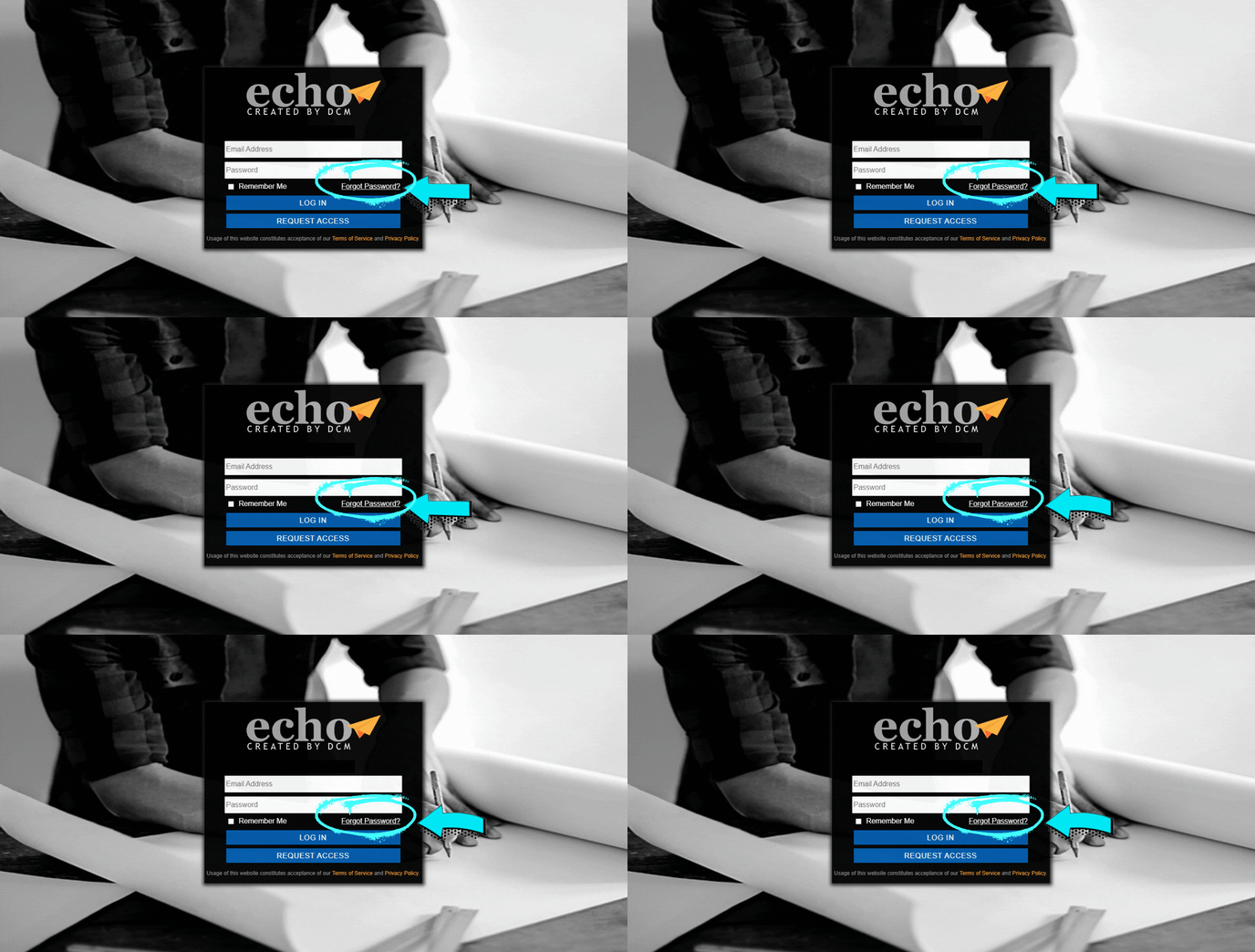
- Click the Forgot Password link
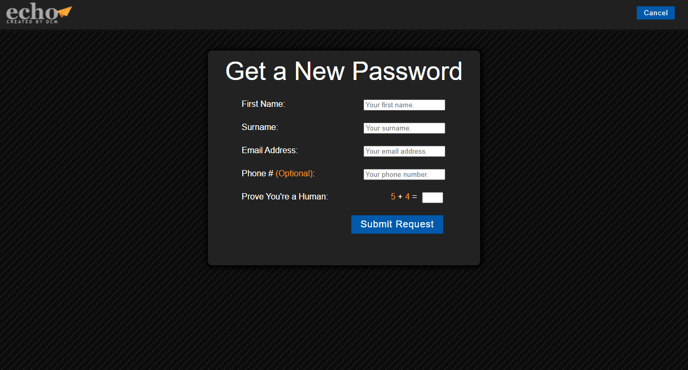
- Complete the Get a New Password form
- Check your email for a new temporary password
- Log in using the temporary password
- Follow the prompts to set a new password for future log ins
Step 1: Visit your echo URL
The forgot password link is found on the log in page at your system's URL.
Alternatively, you can email your company's site administrator for assistance or email echosupport@drawingspecialists.com and include your site name and the email address you need assistance with!
Step 2: Click the Forgot Password link
Step 3: Complete the Get a New Password form
The link will take you to a new web page, where you'll need to provide some details about your account--your email address, name, and (optionally) your phone number.
Step 4: Check your email for a new temporary password
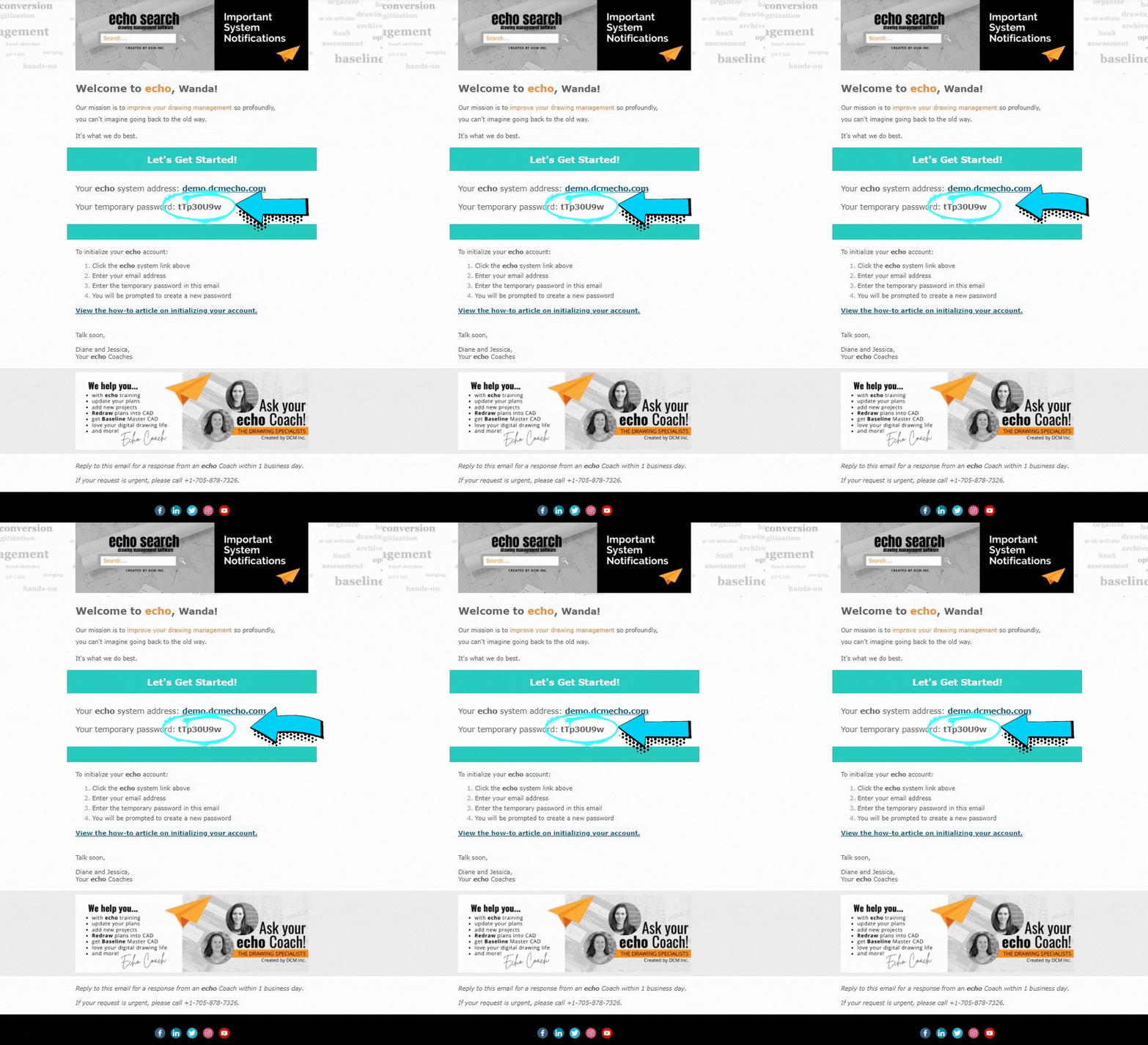
This will send an email to the provided email address, containing a one-time password (OTP) which you will be able to use to sign in to the system, much like the initial welcome email you received when you logged in for the very first time.
Locate the 8 character code next to Your temporary password:
- Use your mouse to select and highlight the password only
- Press the keys Ctrl + c on your keyboard to copy it to your computer's clipboard
or write it down.
Step 5: Login using the temporary password in the email
Head back to visit your echo site URL.
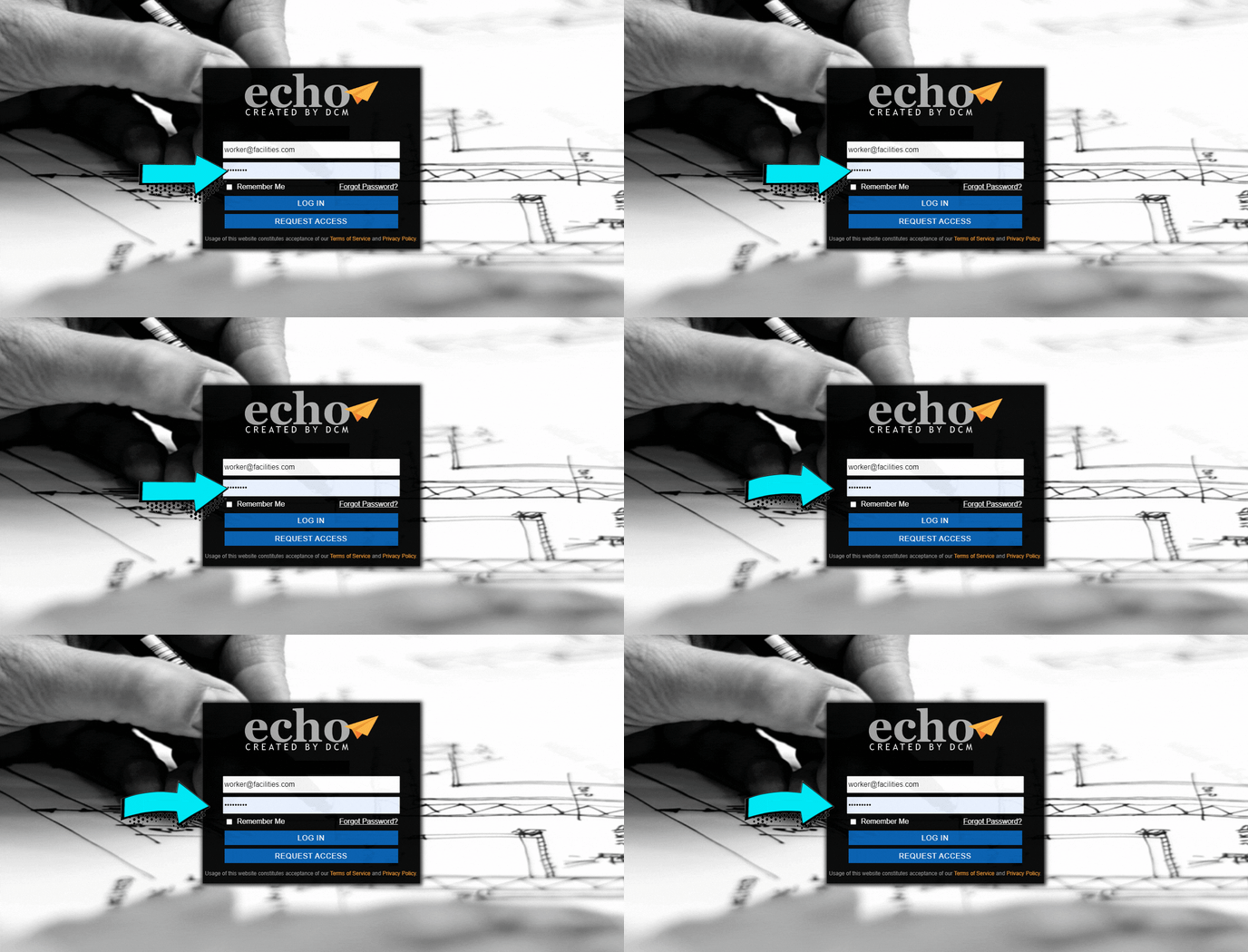
- Click on the Password box in the form to place your cursor there
- Press Ctrl + v on your keyboard to paste the copied temporary password into the Password box on the login form
or enter it exactly as written down.
Step 6: Establish a new password
Once you have signed in, you will be asked to provide a new password for your account as the temporary passwords provided in emails do expire.
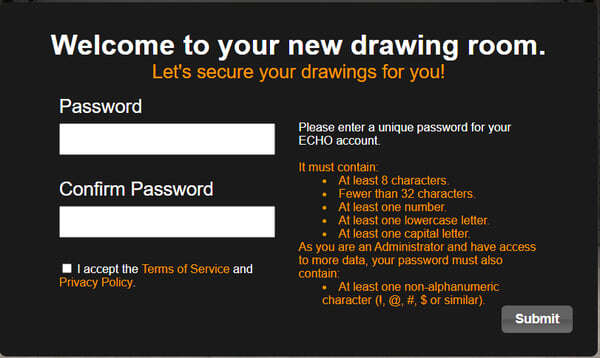
Upon successful login using your email and the provided temporary password, you will be prompted to enter your own password using the rules provided on the next screen.
- Enter your new password twice
- Click the box to accept the Terms of Service and Privacy Policy
- Then click the blue Submit button
Welcome back to echo.
NOTE: If you receive the "Invalid email address" error when trying to reset your own password, it means that echo does not have any record of an account using that email address. If this happens, there's a few things you should do:
- Verify that you are using the correct email address that was used to create your echo account
- Check that you have not made any misspellings when typing your email address
- Contact an echo Administrator in your workplace and ask for them to verify the existence of your account and/or change your account's email address to your current email address
Email echosupport@drawingspecialists.com any time for a response within 1 business day.
If your request is urgent, please call +1-705-878-7326.
Click here to sign up for a group webinar or book with an echo coach.